

Review Platform Links, Priority Ordering & Multi-Business Management
Connect your Google, Zomato, and Practo review profiles, set platform priority order, and manage multiple store locations from one account.
#Connecting Your Public Review Platforms
When your happy customers scan your QR code and select a 4 or 5-star rating, where should they go to post their review? The Platform Links section allows you to connect all your public review listings so customers can post feedback with a single tap.
Note: This section appears directly beneath the Business Profile form as soon as you have saved your profile at least once.
#Step-by-Step: Adding Review Platform Links
Click the "+ Add Platform Link" Button
Scroll to the bottom of the Settings page and click the "+ Add Platform Link" button. A new row will appear.
Select Your Platform Provider
Choose your platform from the dropdown menu: • Google (Most Important) • Zomato (Restaurants & Cafes) • Practo (Doctors & Dental Clinics) • Facebook (Local Services) • TripAdvisor (Hotels & Tourism) • Swiggy (Food Delivery) • CUSTOM (Link to your own website, JustDial profile, or custom portal)
Paste Your Direct Profile URL
Paste your full public review link (must begin with http:// or https://). We always suggest pasting the direct review link. When users click on it, they will be redirected straight to the review writing form box. This way, they don’t need to search or navigate menus just paste and submit, that’s it.
Save Platform URLs
Click the green "Save Platform URLs" button at the bottom right to lock in your links.

#How to Find Your Direct Google Maps Review Link
To ensure customers land directly on the review submission box:
- Search for your business on Google Maps.
- Click on your business profile card.
- Scroll down and click on the “Write a Review” button.
- Copy the URL from the browser’s address bar this is the direct review writing box link.
- Paste that link into the Google URL field in Karo Simple.
👉 This link takes users straight to the review form box, so they can immediately type and submit feedback.
Tip
Follow the same steps for other platforms (e.g., Facebook, Justdial, Zomato, Amazon). Always paste the direct review writing link so customers don’t need to search just click, write, and submit.
#Platform Priority Ordering (Pro & Agency Feature)
If your business is listed on multiple platforms (such as Google, Zomato, and Facebook), you can control which platform appears first on your customer's phone screen:
- Using Up and Down Arrows: Use the Up and Down arrow buttons on the right side of each row to move your preferred platforms to the top of the list.
- Why Google Should Always Be #1: Google reviews have the greatest impact on local map pack rankings and search visibility. We strongly recommend keeping Google at position 1, with secondary platforms like Zomato or Practo directly below.
#Managing Multiple Businesses from a Single Account
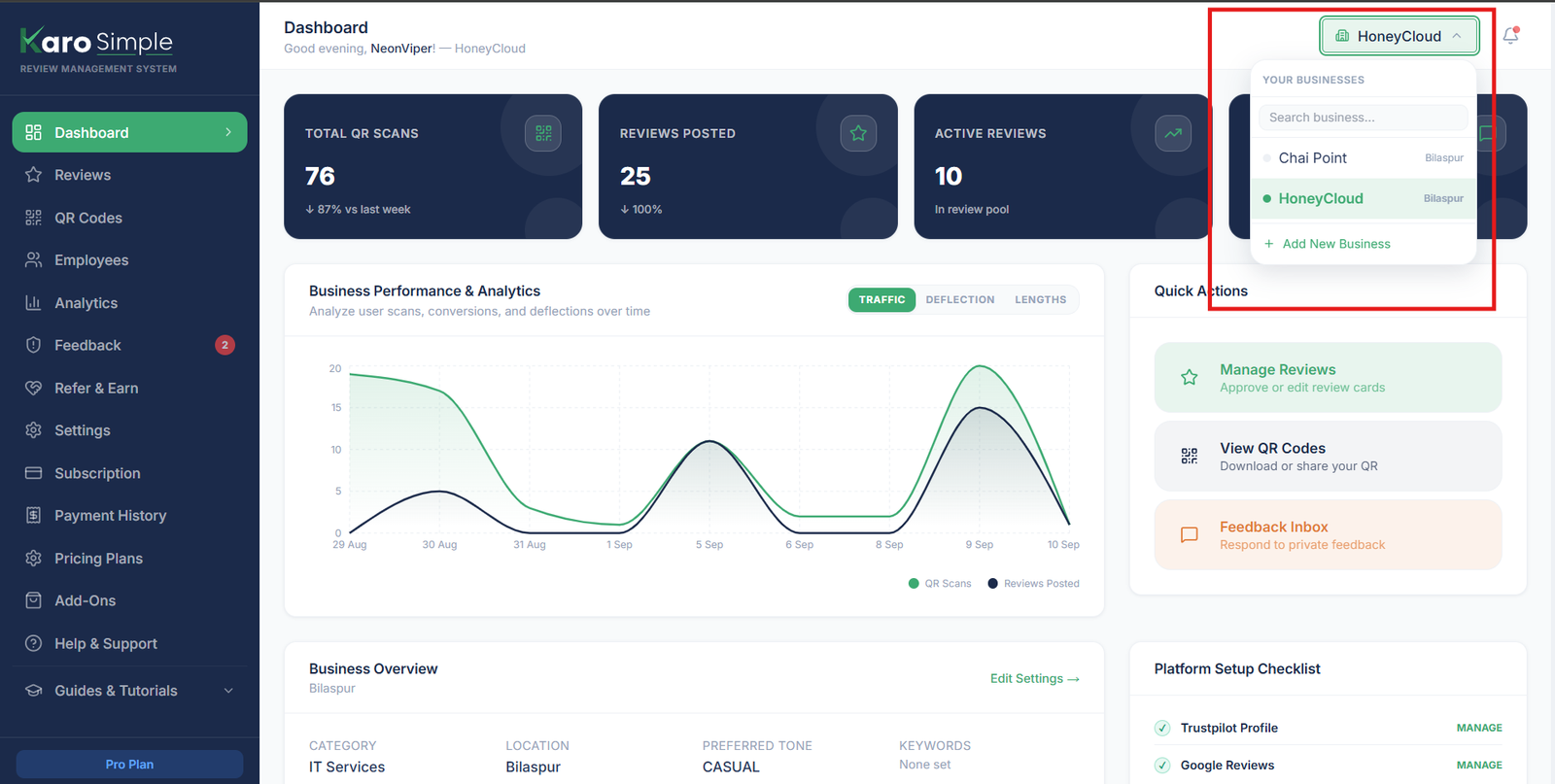
If you operate multiple branches, franchises, or completely different businesses, you do not need to create separate login accounts. Karo Simple allows you to manage multiple independent businesses from a single dashboard:
- Switching Between Businesses: At the top of your dashboard, click the Business Switcher dropdown menu to switch between locations in one click. All QR codes, reviews, staff accounts, and analytics immediately filter to the selected business.
- Adding a New Business: Click "+ Add New Business" in the switcher. The new business starts fresh with its own dedicated profile, separate review library, and distinct QR codes.
Multi-Location Example
You own a restaurant in Pune and a catering service in Mumbai. You enroll both on your single account. When managing table standees in Pune, switch to Pune. When updating wedding review keywords in Mumbai, switch to Mumbai. Complete operational isolation under one unified login.
#Frequently Asked Questions
Was this guide helpful?
Help us keep our documentation accurate and easy to follow.
Configuring Your Business Profile, Location & AI Context
Set up your business name, category, localized address landmarks, and master AI context instructions to make generated reviews sound authentic.
Target & Negative Keywords and Review Automation Rules
Configure positive and negative keywords for AI reviews, set up email reminder notifications, and automate pending review approvals.