

Feedback Status Management: In Progress, Resolving & Ignoring
Master the feedback resolution workflow: mark items In Progress, write internal audit notes when resolving, dismiss spam, and manage team permissions.
#Organizing Your Customer Care Workflow
As your business grows, keeping track of which customer complaints have been resolved and which ones are still waiting for follow-up is essential. Leaving complaints unanswered creates resentment, while duplicate calls from multiple managers confuses customers.
Karo Simple provides a dedicated status lifecycle to keep your team organized, accountable, and transparent.
#The 4 Feedback Statuses Explained
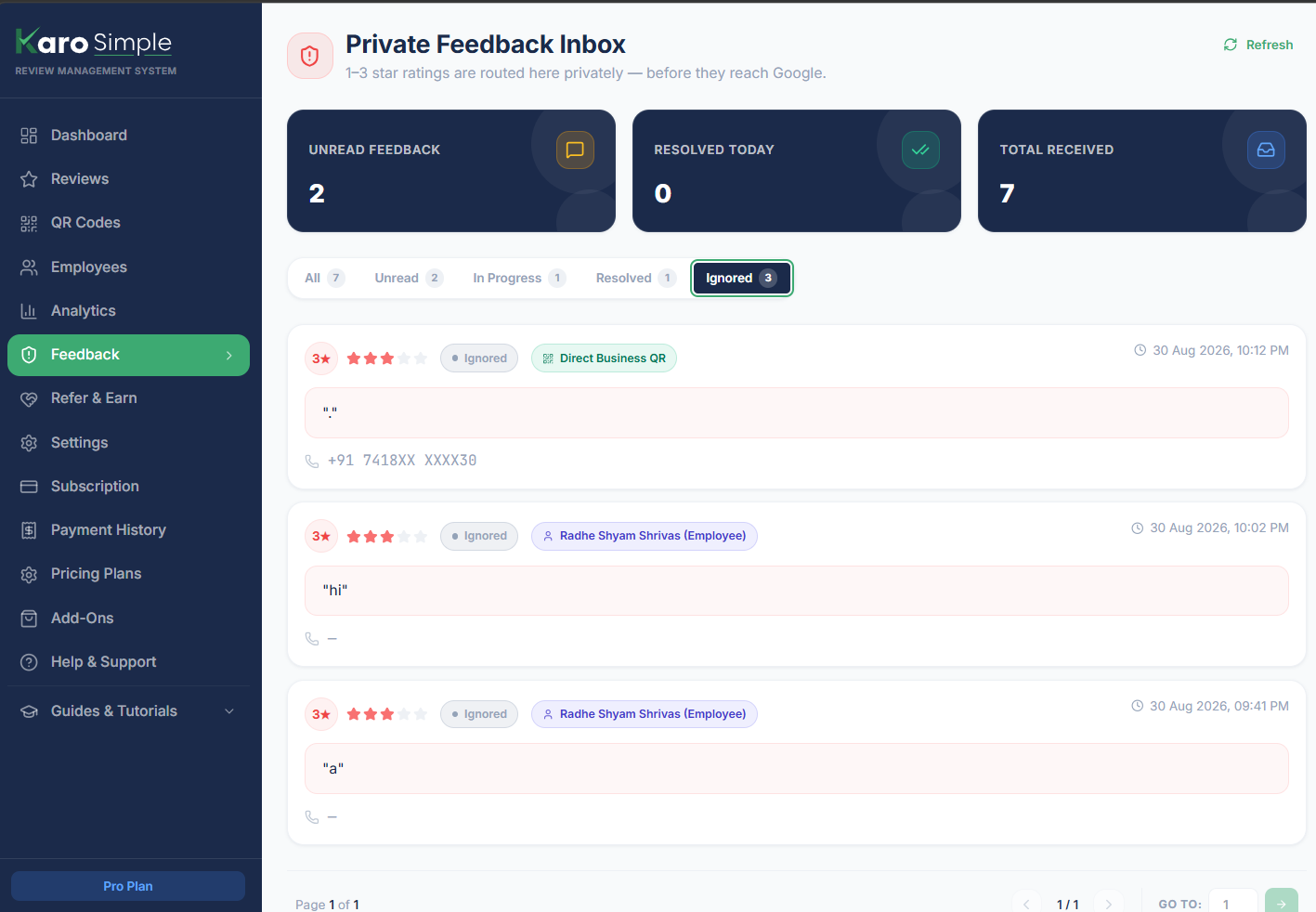
At the top of your Feedback inbox, 5 tabs allow you to filter entries by their current status:
- All: Displays every feedback record in your history, regardless of status.
- Unread (Yellow Badge): Brand new customer feedback that management has not reviewed or acted upon yet.
- In Progress (Blue Badge, Pro & Agency): Feedback that you or your team are actively investigating or following up on.
- Resolved (Green Badge): Customer complaints that have been addressed and closed, complete with a resolution note.
- Ignored (Gray Badge, Pro & Agency): Dismissed spam, fake submissions, or uninformative one-word complaints.

#Marking Feedback as "In Progress" (Pro & Agency Feature)
When you attempt to reach a customer but cannot resolve the issue immediately, mark the item as In Progress:
Click the "In Progress" Button
Locate the feedback entry and click the blue "In Progress" button.
Status Updates Instantly
The status badge turns blue, signaling to other managers that this customer case is already being handled.
Real-World Example
You called an unhappy customer during your afternoon break, but their phone went to voicemail. You mark the feedback as "In Progress" so you remember to call them again tomorrow morning, and your evening shift manager knows not to double-call them.
#Marking Feedback as "Resolved" and Writing Audit Notes
Once an issue has been handled, close the loop by marking it Resolved:
Click "Mark as Resolved"
Click the green "Mark as Resolved" button on the feedback card.
Write an Internal Resolution Note
A dialog opens with an optional (but strongly recommended) text box. Type a brief summary of what action you took. Example notes: • "Called customer. Apologized for delay. Sent ₹200 discount coupon for next visit." • "Spoke to customer Amit. Replaced broken item. Customer satisfied and agreed to visit again."
Confirm and Save
Click "Confirm". The entry moves to the Resolved tab, and your note is permanently pinned beneath the customer message for future reference.

#Handling Spam & Fake Complaints: The "Ignore" Action
Occasionally, you may receive a test scan, a competitor sending gibberish, or a one-word complaint like "bad" without any context or reachable phone number. On Pro and Agency plans, click "Ignore" to dismiss it:
- Keeps Your Inbox Clean: The item vanishes from your active Unread view and moves to the Ignored tab.
- Data Preservation: Ignoring is not the same as deleting. All data remains safely archived in your Ignored tab if you ever need to inspect it later.
#Staff vs Manager Permissions for Feedback Handling
Karo Simple controls who can view and resolve customer feedback:
- Regular Staff Members: When employees log into their mobile account, they ONLY see feedback generated through their own personal QR code. They cannot view feedback belonging to other colleagues. They can mark their own issues as Resolved, but cannot mark them In Progress or Ignore them.
- Store Managers: Have full company-wide visibility across all stations, tables, and staff members, with complete access to In Progress, Ignore, and export controls.
#Frequently Asked Questions
Was this guide helpful?
Help us keep our documentation accurate and easy to follow.
How Reputation Protection Works: Review Shielding Explained
Discover how Karo Simple shields your Business Profile by guiding 4 and 5-star ratings to platform while routing 1, 2, and 3-star ratings to a private inbox.
Direct Customer Outreach: Calling Unhappy Customers & Tracing Sources
Learn how to use one-click phone dialing from your mobile device, understand masked phone privacy, and trace complaints to specific staff members.