

Tracking QR Scans, Staff Performance & Status Management
Analyze which QR codes and staff members generate the most 5-star reviews, view detailed scan logs, and learn how to temporarily deactivate or reassign codes.
#Why Tracking Scans Transforms Your Review Strategy
Most business owners print a generic review stand, place it on a counter, and hope for the best. Without analytics, you have no way of knowing whether customers are actually scanning your code, which table location works best, or which team members are actively encouraging reviews.
Karo Simple provides granular, real-time tracking for every single QR code in your business. By tracking scans, conversions, and employee attribution, you can reward high-performing staff and eliminate dead zones where stands are ignored.
#Viewing Real-Time Scan Logs and Customer Journeys
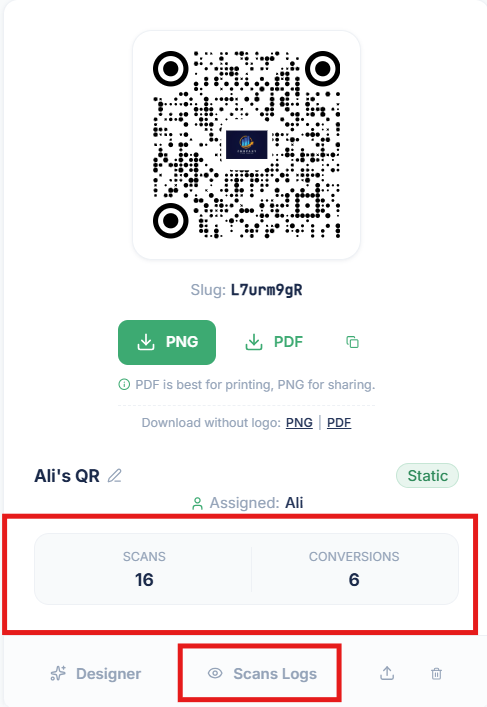
Every time a customer points their phone camera at your QR code, Karo Simple logs the interaction in real time. To view these logs:
Open the QR Card Actions
Locate the QR code card you want to inspect on your QR Codes dashboard.
Click "Scan Logs" or "History"
Click the "Scan Logs" button. A detailed slide-over drawer will appear showing every scan recorded for that specific code.
Analyze the Data Points
Each scan entry provides actionable business intelligence: • Date & Exact Timestamp: Know the peak hours when customers scan (e.g. Friday evenings 7–9 PM). • Device & OS: Shows whether the scan came from an iPhone (iOS), Android device, or tablet. • Conversion Status: Clearly highlights whether the customer completed their review ("Converted" in green) or closed the browser ("Browsed" in gray).

#Employee Attribution: Motivating Your Team with Leaderboards
When you assign a QR code to a specific staff member (such as a waiter, service advisor, hairdresser, or receptionist), every review generated through that stand is attributed to them.
- Friendly Team Competition: View who on your team is actively inviting customers to leave reviews and who needs additional traning.
- Automated Incentive Bonuses: Many of our most successful businesses reward staff with a ₹200–₹500 bonus for every verified 5-star review attributed to their QR stand.
- Review Leaderboard: Celebrate your top performers monthly to maintain positive team momentum and customer service standards.
#Managing QR Code Status: Deactivating vs. Deleting
Over time, employees leave, menus change, or seasonal tables get rearranged. Karo Simple offers two ways to handle retired codes:
- Deactivating a Code (Recommended): Pauses the QR code without destroying its history. The card turns gray in your dashboard. If a customer scans the physical stand, they see a friendly branded maintenance note or are redirected to your primary shop page. All historical analytics and conversion records remain completely safe. You can click "Reactivate" at any time to resume using the code without printing anything new.
- Editing Details & Reassigning: If a staff member leaves your company, do not delete their QR code! Simply click the "Edit" pencil icon, change the employee name to their successor, and save. The physical stand stays in place on the counter and the new employee begins receiving credit immediately.
- Permanent Deletion (Use With Extreme Caution): Permanently deletes the QR code and wipes all associated scan records from the database. Anyone scanning that physical code in the real world will receive a broken link error page. Only use Permanent Deletion if the physical card was destroyed or lost.

#Staff Permissions vs Admin Control
Karo Simple incorporates smart role-based security to ensure staff cannot accidentally alter store settings:
- Manager Role: Full administrative access. Can create new codes, edit names, alter brand colors, access the Design Studio, download vector files, reassign codes, and view store-wide financial and review reports.
- Staff Member Role: When employees log into their personal dashboard account, they only see the specific QR code assigned to them. They can view their personal scan counts and conversion rates, but they cannot edit URLs, delete codes, or modify store branding.
#Strategic Placement Checklist for High Conversions
Follow this proven placement checklist to maximize daily scans and customer participation:
Bill Presentation Folders & Check Holders
This is the golden hour of customer satisfaction. When dining at a restaurant, the 3–5 minutes while waiting for the bill to be processed is when customers are most likely to pick up their phone and leave a review.
Direct Checkout Counter Eye Level
Mount a sturdy acrylic standee right next to the card terminal. Make sure the call-to-action is clear: "Loved your visit? Tap or scan to share your experience on Google!"
Waiting Lounges & Service Stations
In salons, auto repair shops, and clinics, place tabletop stands on coffee tables where customers wait. Add a small incentive note: "Help our small business grow with a 30-second review."
#Frequently Asked Questions
Was this guide helpful?
Help us keep our documentation accurate and easy to follow.
Creating Your First Review QR Code
Learn what Karo Simple review QR codes are, how your customers use them, and how to create your first QR code in under 2 minutes.
Customizing, Styling & Downloading Your QR Code
Make your QR code match your brand colors, insert your shop logo in the center, and download high-resolution files ready for printing.