

Agency Client Tickets: Resolving Issues & Super Admin Escalation
Manage support tickets raised by your client accounts, add conversation notes, update resolution statuses, and escalate to Super Admin.
#The Agency Client Tickets Management Hub
If you operate an Agency tier account on Karo Simple, you have an exclusive tab at the front of your Help & Support page: Agency Client Tickets. This tab centralizes all questions, configuration requests, and inquiries submitted by any of the independent business locations managed under your agency umbrella.
Managing client tickets directly empowers you to deliver white-glove customer care, resolve local issues without waiting for third-party help, and build long-term client trust.
#Step-by-Step: Managing a Client Support Ticket
Open the "Agency Client Tickets" Tab
In Help & Support, click the "Agency Client Tickets" tab. You will see a list of client submissions with business names, subjects, and submission timestamps.
Click the "Manage" Button
Locate the ticket and click the blue "Manage" button on the right side of the row.
Review Details and History
The management window displays the client's original message, their registered contact information, and any prior communication history.
Add Internal Notes or Client Replies
Type your findings or response in the note field at the bottom. Click "Add Note" to save it permanently to the ticket thread.
Update the Ticket Status
Use the status dropdown to move the ticket to ONGOING or RESOLVED, then click "Save Status".
Real-World Agency Support Workflow
A client (Apex Dental Clinic) submits a ticket: "Our reception QR code shows an invalid URL when scanned." You click Manage, inspect their QR settings, and realize their Google Maps link had an extra space. You correct the link, test the QR code, and add a note: "Corrected URL spacing. QR code now points directly to your Google review page." You mark the ticket as RESOLVED in under 10 minutes!

#Escalating to Super Admin (Platform-Level Issues)
Most client inquiries involve simple setting adjustments or review approvals that you can handle immediately. However, if a client experiences a platform-level issue that requires engineering intervention, you can escalate the ticket directly to Karo Simple Super Admin:
- When to Escalate: Payment gateway transaction failures, domain SSL errors, or deep technical bugs affecting the core system.
- When NOT to Escalate: Routine styling questions, adding keywords, or basic QR code customization.
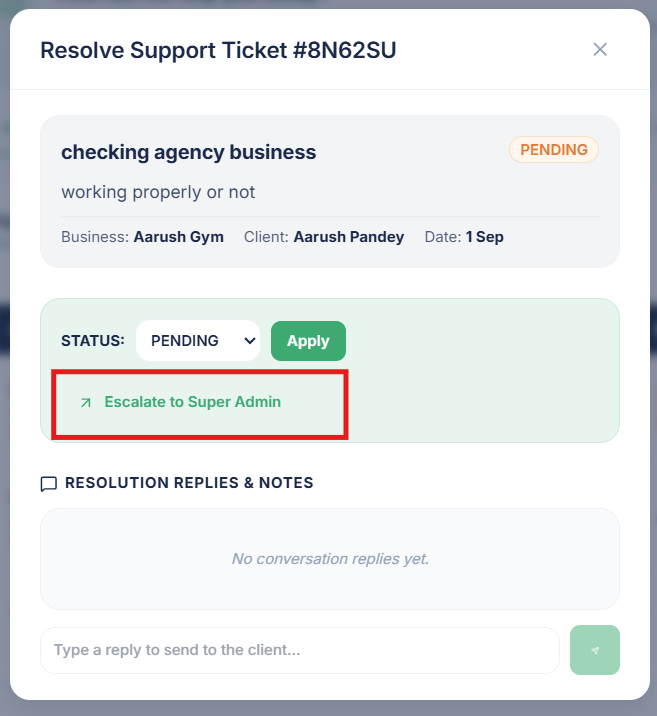
Click "Escalate to Admin"
Inside the Manage ticket window, click the red "Escalate to Admin" button.
Confirm the Escalation
A confirmation dialog will appear. Confirm the escalation. The ticket is immediately flagged with high priority on the Karo Simple core engineering dashboard.
#Frequently Asked Questions
Was this guide helpful?
Help us keep our documentation accurate and easy to follow.