

Managing, Approving, Moderating & Exporting Reviews
Master review moderation: single and bulk approval, rejecting with reasons, reinstating, editing mistakes, archiving posted reviews, and CSV exports.
#Why Review Moderation Keeps Your Brand Professional
Whether you write reviews manually or generate them with AI, you are always in complete control of what customers see. No review ever goes live to your customers until you personally inspect and approve it.
Karo Simple provides a comprehensive moderation suite: you can approve top-tier copy with one click, reject drafts with reason notes for your team, edit minor typos, archive retired reviews, and download complete backups.
#Approving Reviews (Making Them Visible to Customers)
When a review is in PENDING status, it is hidden from customers. To make it visible:
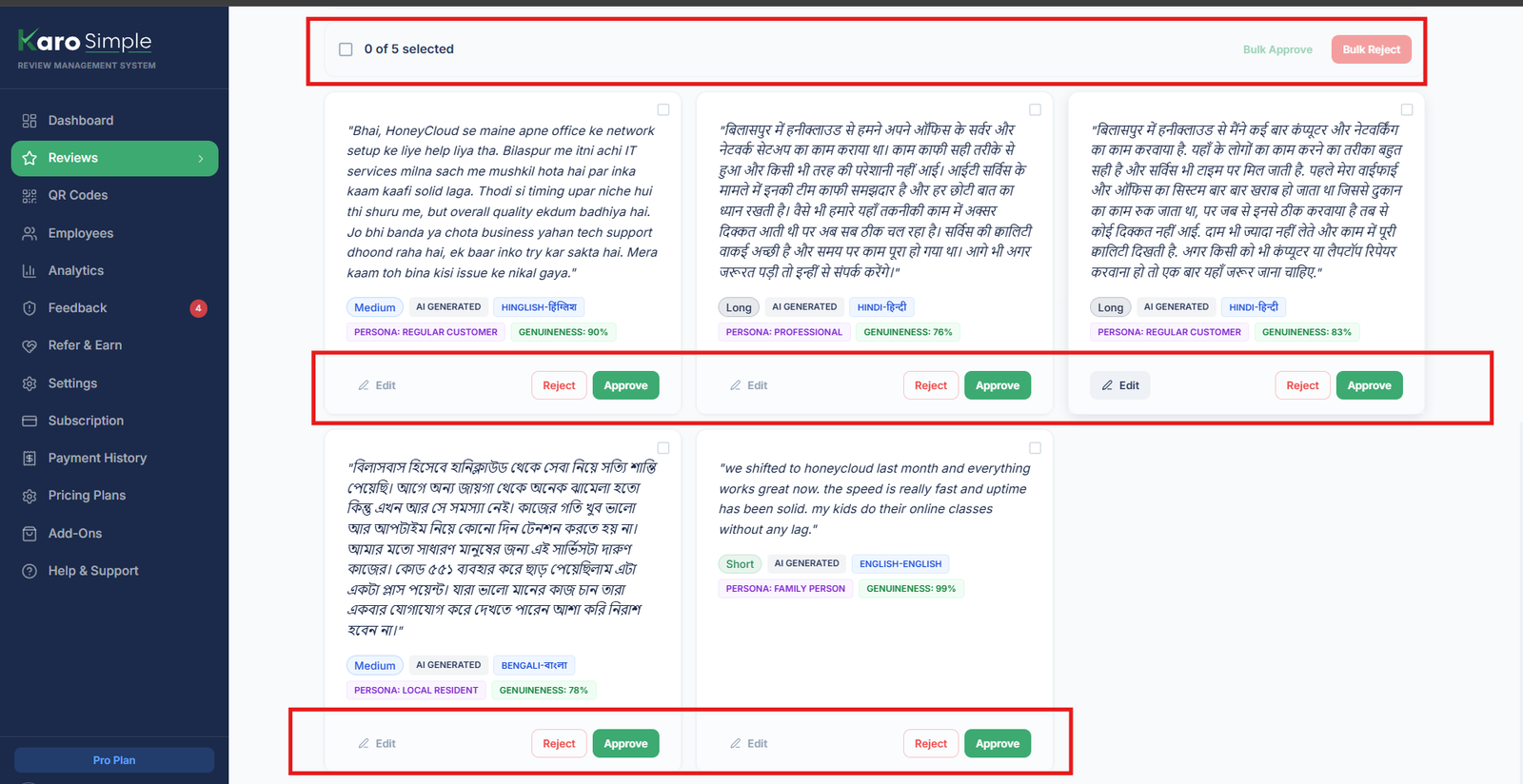
- Single Approval: Find any PENDING review and click the green "Approve" button on its row. Its badge immediately turns to green APPROVED, and it goes to active pool.
- Bulk Approval (Pro & Agency Plans): When you generate 15 or 30 AI reviews at once, approving them individually takes unnecessary clicks. Select the checkbox next to every review you like (or click the master "Select All" box) and hit "Approve Selected" at the top of the table. All chosen reviews are approved instantly.
#
Rejecting Reviews & The "Reinstate" Superpower
If a suggested review doesn't sound like your shop, you can reject it. A rejected review stays safely cataloged in your "Rejected" tab for your records, but your customers will never see it.
Click "Reject"
Click the red "Reject" button next to any PENDING review.
Enter a Mandatory Rejection Reason
A small dialog will prompt you to type why you are rejecting this draft (e.g., "Tone is too formal", "Mentions wrong dish", or "Sounds generic"). This keeps an audit trail for your managers and helps you remember why it was excluded.
Confirm Rejection
Click "Confirm Reject". The review moves into your "Rejected" tab.
The "Reinstate" Superpower: Bringing Rejected Reviews Back to Life
What if you rejected an AI review because it had one awkward line, but later realize the rest of the review was brilliant? You don't need to delete it or start over! Open the "Rejected" tab, find the review, and click "Reinstate". It immediately returns to APPROVED status, allowing you to click "Edit", fix that one line, and save it!

#Editing Reviews: Fixing Typos and Personalizing Copy
You can edit any review in your library as long as its status is PENDING or APPROVED:
- How to Edit: Click the "Edit" pencil icon on the review row. A modal opens with the text in an editable box. Make your adjustments and click "Save Changes".
- Can You Edit a POSTED Review? No. Once a real customer has selected a review and posted it live on Google, its status changes to POSTED. To protect historical data and prevent discrepancies with Google Maps, POSTED reviews are permanently locked from editing.
#Exporting Your Complete Review Library to CSV
You can download your entire review collection as a clean CSV spreadsheet at any time:
Click "Export CSV"
Click the "Export" or "Download CSV" button located near the top of the Reviews table in active pool.
Open in Excel or Google Sheets
The file downloads directly to your device. Open it in Microsoft Excel, Google Sheets, or Apple Numbers to view review text, statuses, creation dates, and word counts. This is ideal for offline backups or presenting customer feedback to stakeholders.
Plan Requirement for CSV Export
CSV Export is available on Pro and Agency subscription plans.

#Staff vs Manager Permissions on the Reviews Page
To safeguard your brand reputation, Karo Simple restricts review library management:
- Regular Staff Members: When regular employees log into their dashboard, they see an "Access Restricted" message on the Reviews page. They cannot view, add, edit, or approve review suggestions.
- Owners & Managers: Full administrative rights to generate AI reviews, moderate submissions, edit copy, reject, approve and export data.
#Frequently Asked Questions
Was this guide helpful?
Help us keep our documentation accurate and easy to follow.
Building Your Review Library: Manual, CSV & Bulk Paste
Learn how the Karo Simple review library works, understand review statuses, and discover 3 fast ways to add reviews: manual writing, CSV import, and instant bulk paste.
Generating Smart Reviews with AI
Generate high-converting, realistic reviews using AI in 15+ languages with custom tones, positive and negative keywords, and tailored instructions.