

Building Your Review Library: Manual, CSV & Bulk Paste
Learn how the Karo Simple review library works, understand review statuses, and discover 3 fast ways to add reviews: manual writing, CSV import, and instant bulk paste.
#What is the Review Library and How Does It Help You Get Reviews?
Think of this page as a digital library of ready-to-use review suggestions tailored specifically for your shop or service. When customers scan your physical QR code or open your review link, they often want to leave a nice review, but they suffer from "writer's block", they do not know what words to write, or they are in a hurry.
Karo Simple solves this problem completely. When a customer reaches your landing page, they are presented with curated review suggestions from your library. All the customer has to do is tap the review that best matches their experience, click "Post on Platform," and paste it. What previously took 5 minutes of typing now takes just 5 seconds.
The larger, more diverse, and more authentic your review library is, the more likely every kind of customer will find a review they feel comfortable posting.
#Understanding Review Statuses in Your Library
Every single review inside your library has a clear status badge that tells you whether customers can see it right now:
- PENDING: The review was added by you or drafted by our AI, but you have not approved it yet. Customers CANNOT see pending reviews on your landing page.
- APPROVED: You reviewed and approved this text. It is fully active and will be displayed as a choice when customers scan your QR code.
- REJECTED: You reviewed this suggestion and decided not to use it. It stays stored in your "Rejected" tab for your records, but customers will never see it.
- POSTED: A real customer selected, copied, and submitted this review to Google or your chosen platform. POSTED reviews cannot be edited because they are already live in the real world.
- ARCHIVED: You retired this review from active rotation without deleting its historical analytics. Customers no longer see it, but you can bring it back anytime.
#Searching and Filtering Your Reviews
As your library grows to dozens or hundreds of reviews, finding specific entries is seamless:
- Filter by Status Tabs: Click on the "Pending" tab to immediately view reviews waiting for your approval. Click "Approved" to inspect live suggestions, or "Posted" to celebrate reviews customers have used.
- Instant Keyword Search: Type any word into the search box at the top. For example, search "delivery" to see all reviews highlighting your fast shipping, or "dr. sharma" to find doctor-specific feedback.
- Pagination Controls: Reviews are neatly organized into pages. Use the page numbers at the bottom right to navigate back and forth without slowing down your computer.
#Method 1: Writing and Adding a Review Manually
If you already know the exact compliments your customers give you in person, you can write review templates yourself in seconds.
Real-World Example
Suppose you run a sweet shop in Jaipur famous for fresh milk cake. You can write: "The best milk cake in Jaipur, so fresh, soft, and melts in your mouth! Staff packed it with great care." This gives your happy customers the perfect words to post which boost your SEO.
Click the "Add Review Manually" Button
Navigate to the Reviews page in your dashboard and click the primary "Add Review Manually" button located in the middle-right of page.
Select the "Single Review" Tab
In the modal window that opens, ensure you are on the default "Single Review" tab.
Type or Paste Your Review Text
Enter the review content into the text area. Keep it natural, authentic, and written from a customer's first-person perspective ("I visited...", "We loved...").
Add to Library
Click "Add Review". The new review will be added immediately with the status approved, reviews will be shown in the active pool.
#Method 2: Uploading up to 50 Reviews via CSV Spreadsheet
If you already have a list of customer testimonials or pre-written review templates in Microsoft Excel or Google Sheets, you can import up to 50 reviews simultaneously in one click.
Prepare Your CSV Spreadsheet
Create a simple spreadsheet where each row contains one customer review. You do not need complex columns or formatting, just a clean list of review sentences.
Open"CSV Upload"
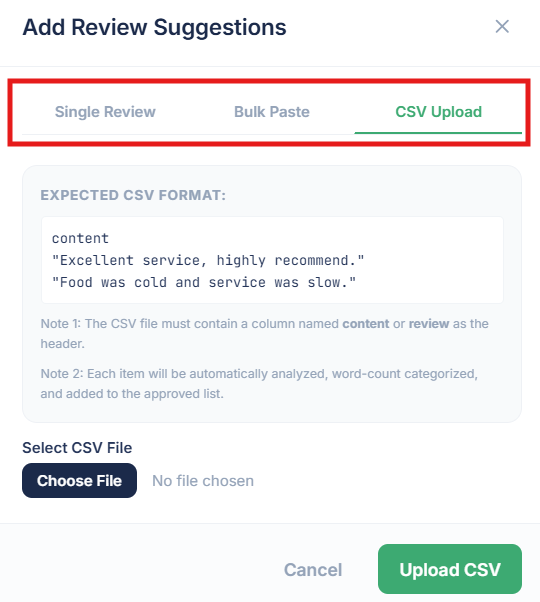
Open the Add Review Manually modal and switch to the "CSV Upload" tab.
Select and Upload Your File
Click "Choose File", select your .csv document from your phone or computer, and click "Open/Upload".
Automatic Duplicate Detection
Karo Simple automatically scans each row against your existing library. If any review is an exact duplicate of one you already have, it is automatically skipped so your library stays clean and clutter-free.
Upload CSV
Click the button "Upload CSV". Karo Simple automatically analyzes word counts, sorts each review into Short, Medium, or Lengthy tiers, and imports them directly into your APPROVED list, ready for customers immediately without any manual approval step!
Plan Availability for CSV Import
CSV Bulk Import is available on Pro, and Agency plans. It is not available on the Free and Starter.
#Method 3: Instant Bulk Paste (Fastest No-Spreadsheet Import)
Don't want to deal with spreadsheets or files? Bulk Paste allows you to copy a list of reviews from WhatsApp, Apple Notes, Google Docs, or an email and paste them directly into your library in 10 seconds.
Real-World Example
You drafted 10 quick customer reviews in your WhatsApp notes over the weekend. Instead of creating a CSV file, just highlight all 10 lines, copy them, paste them into the Bulk Paste box, and hit Import!
Click "Add Review Manually" and Select "Bulk Paste"
Open the Add Review Manually modal and switch to the "Bulk Paste" tab.
Select Your Separator (Default: New Line)
From the Separator dropdown, always select Semicolon (;) or Pipe (|). 👉 These are recommended because sometimes new line or comma separators can cause conflicts and break your reviews into wrong parts. Wherever the chosen separator is found, Karo Simple considers it as the start of a new review.
Paste Your Reviews
Paste multiple reviews into the Pasted Reviews text box. Make sure each review is separated by the chosen separator
Click "Import Bulk"
Click the button "Import Bulk". Karo Simple automatically analyzes word counts, sorts each review into Short, Medium, or Lengthy tiers, and imports them directly into your APPROVED list, ready for customers immediately without any manual approval step!
#Frequently Asked Questions
Was this guide helpful?
Help us keep our documentation accurate and easy to follow.
Generating Smart Reviews with AI
Generate high-converting, realistic reviews using AI in 15+ languages with custom tones, positive and negative keywords, and tailored instructions.
Managing, Approving, Moderating & Exporting Reviews
Master review moderation: single and bulk approval, rejecting with reasons, reinstating, editing mistakes, archiving posted reviews, and CSV exports.