

Staff Role Permissions, Account Updates & Deactivation
Manage staff account security, understand the restricted employee view vs manager control, edit staff profiles, and safely deactivate former employees.
#Role-Based Security: Protecting Your Business Data
When your team members log into Karo Simple, it is essential that they only access what they need. You wouldn't want a junior waiter or receptionist accidentally editing review templates, altering store branding, or viewing private business financials.
Karo Simple enforces strict role-based access control out of the box, dividing users into two distinct tiers: Regular Staff and Store Managers.
#What Regular Employees See (Mobile Restricted View)
When an employee with standard permissions logs in using their email and password, their view is streamlined and focused strictly on their personal performance:
- Personal QR Code: They see their own live QR code, ready to display on their phone screen to a customer at any moment.
- Personal Analytics: They see how many times their QR code has been scanned and how many customers submitted reviews.
- Access Restricted Safeguards: If they attempt to access administrative pages (like Employees, Reviews, Landing Page Builder, or Settings), they see a polite "Access Restricted" screen. They cannot view or modify other staff records or business configurations.
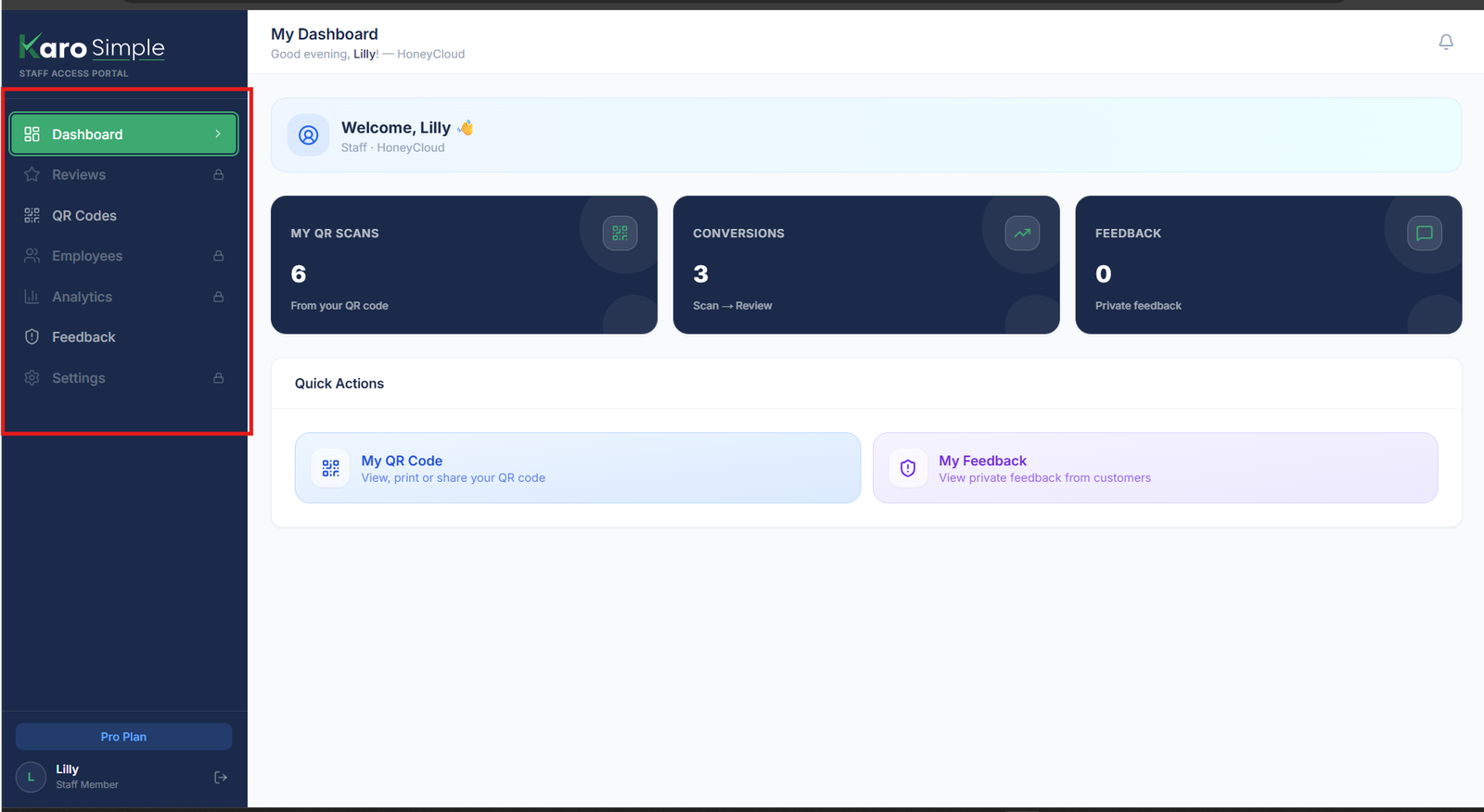
📸 Visual Guide: Screenshot 5 - Employee Mobile View & Restricted Access Screen
Comparison between the clean employee mobile view and the Access Restricted security screen. 🔍 What is shown: • Employee mobile screen showing personal QR code card, scan count, and conversion score. • The "Access Restricted" security banner preventing access to administrative settings. • Clear user indicator showing "Logged in as Staff Member".
#The Store Manager Role (Full Administrative Control)
Store Managers have elevated permissions equivalent to the primary account owner. A manager can:
- Add, edit, and deactivate staff accounts.
- Generate AI reviews and moderate review submissions.
- Customize QR codes, alter brand colors, and download print files.
- View company-wide reports and export customer logs.
Real-World Example
You have a general manager, Ramesh, who oversees the shop floor when you are traveling. You toggle the Manager switch ON for Ramesh. The other 5 floor staff remain Regular Staff. Ramesh can manage day-to-day operations on the app without you having to share your personal master password.
#Editing Staff Details (Name, Email, Credentials)
When employee contact details change or roles are adjusted:
Click the "Edit" Pencil Icon
Find the employee in your staff directory and click the "Edit" pencil icon on their row.
Update the Necessary Fields
You can update their full name, phone number, or toggle the Manager switch ON or OFF.
Updating Email Addresses
Important Note: Changing an employee's email address will change the login ID they use to sign into the app. Always inform the employee of their new login email before saving.
Save Changes
Click "Save". Updates take effect instantly across all active sessions.
#Deactivating Former Staff: Preserving Analytics & QR Safety
Staff turnover is a normal part of business. When an employee departs, you should deactivate their account rather than delete it.
Why Deactivating is Better Than Deleting
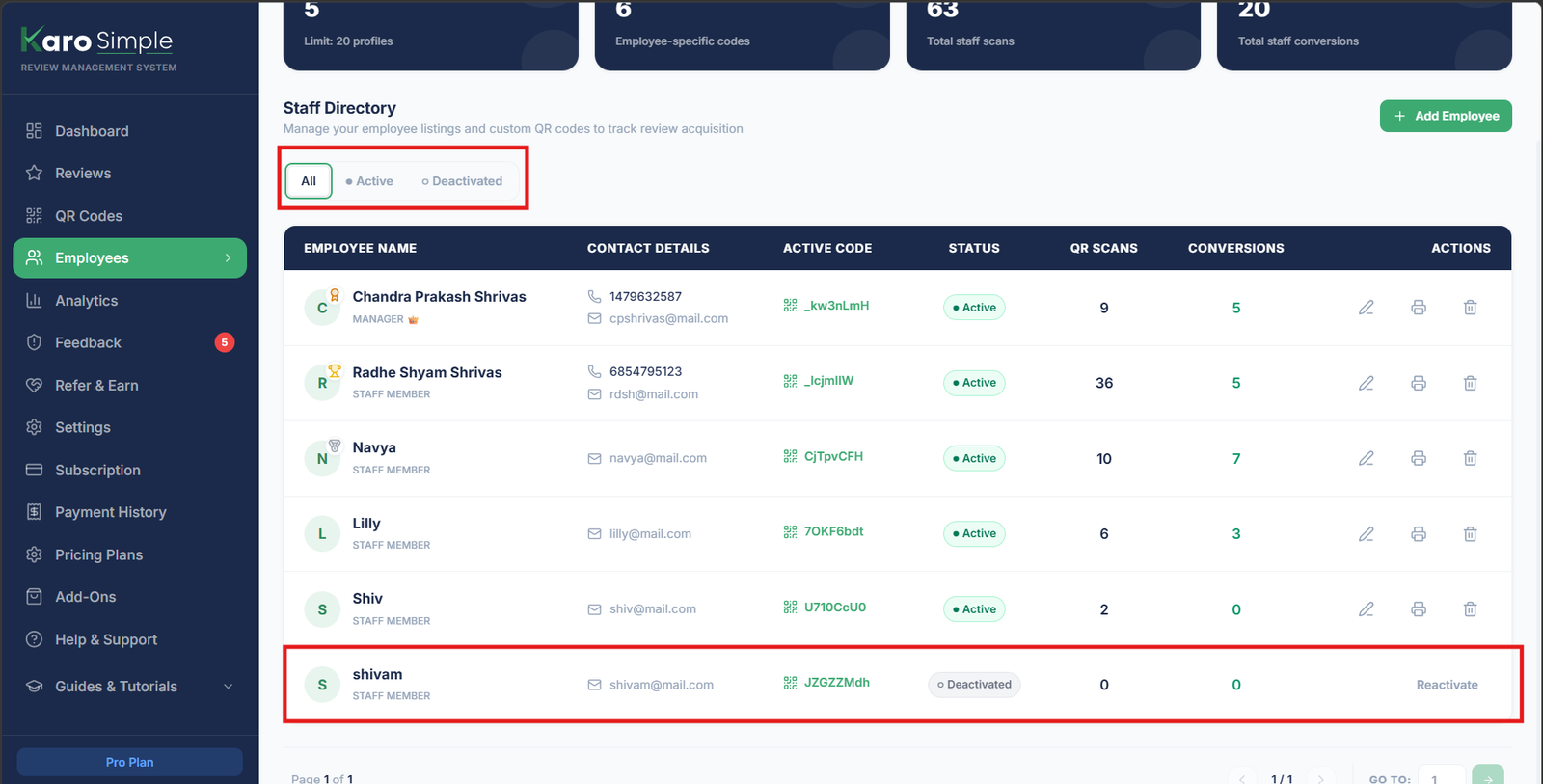
Deactivating an employee switches off their login and pauses their QR code. However, ALL historical analytics (how many scans and 5-star reviews they brought in over their tenure) are permanently preserved in your reports. If you delete a record, historical attribution is lost!
Click "Deactivate"
Locate the departing employee in your list and click the "Deactivate Staff Member" button.
Confirm the Deactivation Prompt
A modal will ask you to confirm. Click "Deactivate Staff".
What Happens to Their Physical QR Code?
Their account is marked Inactive. If a customer scans the physical QR code sticker left at that station, they will not see a broken 404 page. Instead, they see a polite message stating that the code is taking a rest, with a direct link to your main review page.
#Reactivating Returning Staff
If a seasonal employee returns or someone rejoins your business, their profile and original QR code can be reactivated without having to reprint physical cards. Reach out to Karo Simple support or use the Reactivate toggle to restore their active status.
#Frequently Asked Questions
Was this guide helpful?
Help us keep our documentation accurate and easy to follow.
Adding Staff Members & Automatic Personal QR Codes
Learn how adding staff members automatically creates their personal review QR code, sets up mobile login credentials, and configures manager privileges.
Employee Performance Leaderboards & Review Incentives
Track which staff members generate the most 5-star reviews, celebrate top performers with Gold, Silver, and Bronze badges, and set up review incentive programs.