
Customizing, Styling & Downloading Your QR Code
Make your QR code match your brand colors, insert your shop logo in the center, and download high-resolution files ready for printing.
#Why Brand Customization Boosts Scan Rates by 35%
Standard black-and-white QR codes can look impersonal, utilitarian, and sometimes even suspicious to cautious customers. When your QR code proudly displays your brand palette and company logo in the center, it communicates authenticity and trust.
Studies show that customized, branded QR codes achieve up to 35% higher scan and conversion rates compared to generic default codes. With Karo Simple, you can customize colors, add your logo, and download high-resolution files in seconds without hiring an expensive graphic designer.
#Downloading Your QR Code: PNG vs PDF Formats
When your QR code is ready, click the "Download" button on the QR card. You will be prompted to select between two formats. Here is how to choose the right one:
- PNG (Raster Image): Best for standard desktop printing, digital flyers, email signatures, billing software, Word documents, and Canva designs. It downloads as a crisp high‑resolution graphic that looks sharp at normal sizes.
- PDF (Portable Document Format): Best for professional print shops, sign makers, and situations where you need a scalable, shareable file. PDFs preserve quality, are easy to send, and can be used for large banners, acrylic stands, or official documentation without losing sharpness.
Tip
If you want to share the QR code link on WhatsApp or any other social media, you don’t need to download the image. Beside the PNG/PDF download option, there is a Copy button. Click it to copy the link and share instantly.

#Customize QR Code Colors, Dots Size & Finder Style
Match your QR code to your interior decor, brand guidelines, or marketing collateral:
Open the QR Designer
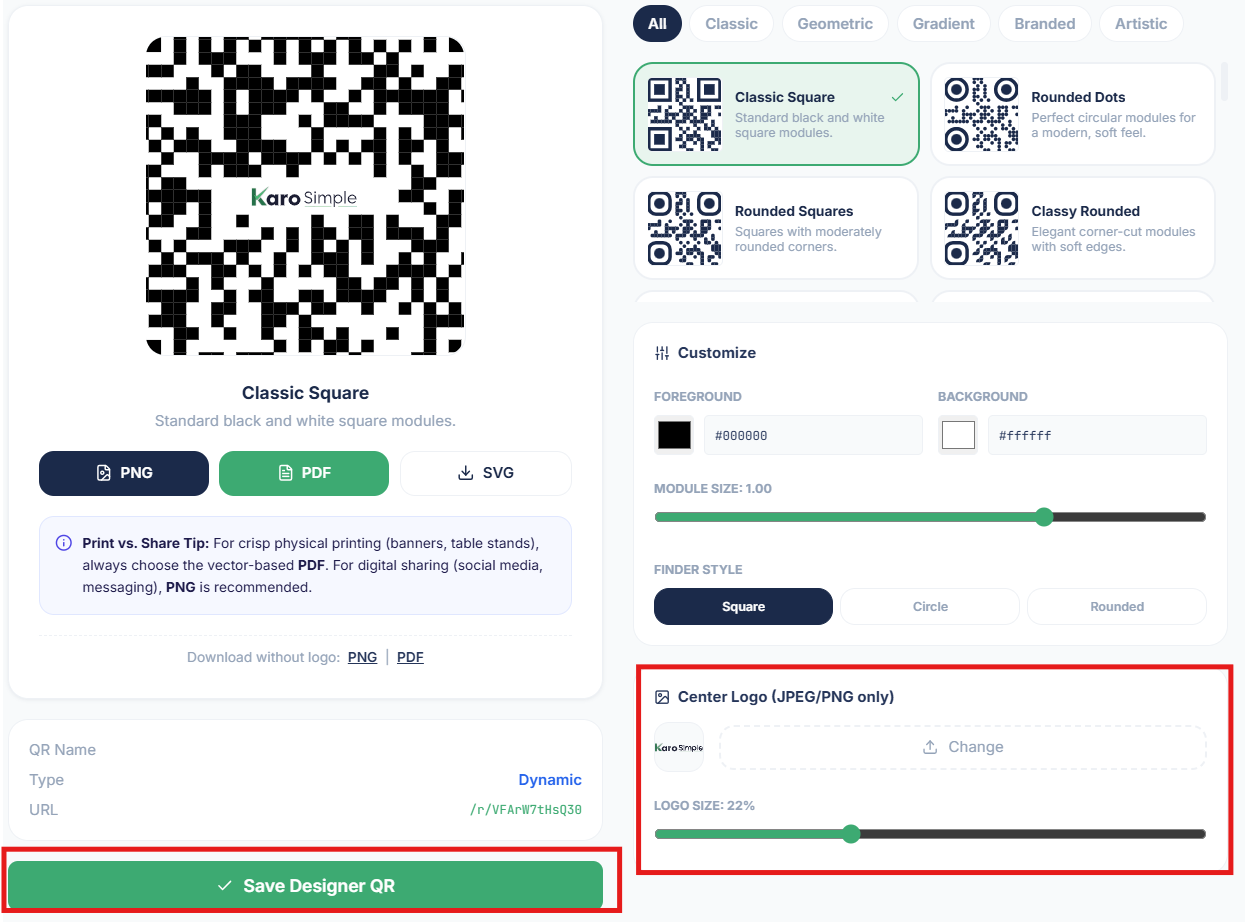
At the bottom of the QR code box, click on the Designer option. This will take you to the QR Designer Studio.
Customize Your QR Code
Inside the Designer Studio, go to the Customize option.
Select Your Foreground Color
The Foreground Color is the color of the QR code dots and corner eye patterns. Select one of our curated high-contrast presets or type in your exact brand HEX color code (e.g., #1E3A8A).
Select Your Background Color
The Background Color is the canvas behind the dots. White or very light off-white (#FFFFFF or #F8FAFC) is standard and recommended.
Adjust Module Size
The Module Size controls how large or small the individual QR dots appear. Increasing the size makes the QR code bolder, while reducing it creates a lighter, more minimal look. Choose a size that balances readability and design.
Customize Finder Style
The Finder Style refers to the three corner eye patterns of the QR code. You can select from different styles (rounded, square, or circle) to match your brand’s aesthetic while keeping the QR easily scannable.
Save
Click "Save Designer QR". The QR code preview will immediately update with your new colors. Always test the QR code with your phone camera to ensure it scans instantly before sharing or printing.

Important Contrast Warning: Keep It Scannable!
Smartphone camera lenses rely on strong optical contrast between dark and light pixels. Always maintain a dark foreground on a light background. Never use light yellow or pale gray dots on a white background, or dark navy on black, as cameras will struggle to focus or fail to scan altogether under dim lighting.
#Adding Your Shop Logo to the Center of the QR Code
Putting your brand logo in the center of the QR code makes it immediately recognizable and professional. Karo Simple uses high-grade Reed-Solomon error correction, which ensures that even when 30% of the code area is covered by your logo, the remaining data redundancy guarantees flawless scanning on every device.
Open Designer Studio
On the QR code card, click the Designer option at the bottom. This will take you to the QR Designer Studio.
Select Center Logo Option
Inside the Designer Studio, go to the Center Logo section. By default, the Karo Simple logo will appear here.
Upload or Change Logo
Click on Upload/Change to add your own logo. You can select a JPG or PNG file from your computer or phone. Beside the upload button, you’ll also see a Preview of how the logo looks inside the QR code.
Adjust Logo Size
Use the slider in the logo section to adjust the size. The placement depends on your logo dimensions if the logo size isn’t proper, the QR modules may shift slightly.
Save Your Designer QR
Once satisfied, click Save Designer QR. Always test the QR code with your phone camera to ensure it scans instantly before sharing or printing.
#Make Your QR Designer Multistyle
If you’re bored of seeing the same QR everywhere, Karo Simple lets you design QR codes in multiple styles. We provide categories like Classic, Geometric, Gradient, Brand, and Artistic so you can create a QR that matches your niche business or personal taste. Let’s understand how to make your QR designer step by step.
Open Designer Studio
Click on the Designer option at the bottom of the QR card. This will take you to the Designer Studio.
Explore Style Categories
On the top‑right of the Designer Studio, you’ll see multiple categories such as Classic, Geometric, Gradient, Brand, Artistic. Each category contains different QR design styles.
Preview QR Designs
Click on any style option to see a live preview of how your QR code will look. This helps you decide which design fits your brand or personal preference.
Select & Save
Once you find the design you love, click Save Designer QR. Your QR will now be updated with the chosen style.
#The Advanced Full-Screen QR Design Studio
For businesses that want a truly custom aesthetic, Karo Simple includes a full-screen Design Studio. Click "Design" or "Open Designer" on any QR code card to access advanced styling controls:
- Dot Shapes: Choose between Classic Squares, Modern Rounded Dots, Smooth Pills, or Diamond shapes.
- Corner Eye Styles: Customize the three large orientation corners with square, circle, or leaf-shaped outer and inner frames.
- Call-to-Action Frames: Surround your QR code with a pre-designed physical frame featuring eye-catching text like "Scan to Review Us on Google ⭐" or "Leave a Review, Get a Treat!".

#Physical Printing & Standee Recommendations
To ensure your printed review stands look premium and stand the test of time, follow these sizing guidelines:
- Table Tent Cards: Recommended size: 4 × 6 inches (10 × 15 cm). Perfect for dining tables, waiting room side tables, and salon stations.
- Counter Standees: Recommended size: 5 × 7 inches (A5 size). Ideal for front desks, payment counters, and cashier registers.
- Bill Receipt Stickers: Recommended size: 2 × 2 inches (5 × 5 cm). Minimum print size should never be smaller than 1.25 × 1.25 inches (3 × 3 cm) to maintain effortless camera readability.
#Frequently Asked Questions
Was this guide helpful?
Help us keep our documentation accurate and easy to follow.
Creating Your First Review QR Code
Learn what Karo Simple review QR codes are, how your customers use them, and how to create your first QR code in under 2 minutes.
Tracking QR Scans, Staff Performance & Status Management
Analyze which QR codes and staff members generate the most 5-star reviews, view detailed scan logs, and learn how to temporarily deactivate or reassign codes.